MoonTerminal · Station ·
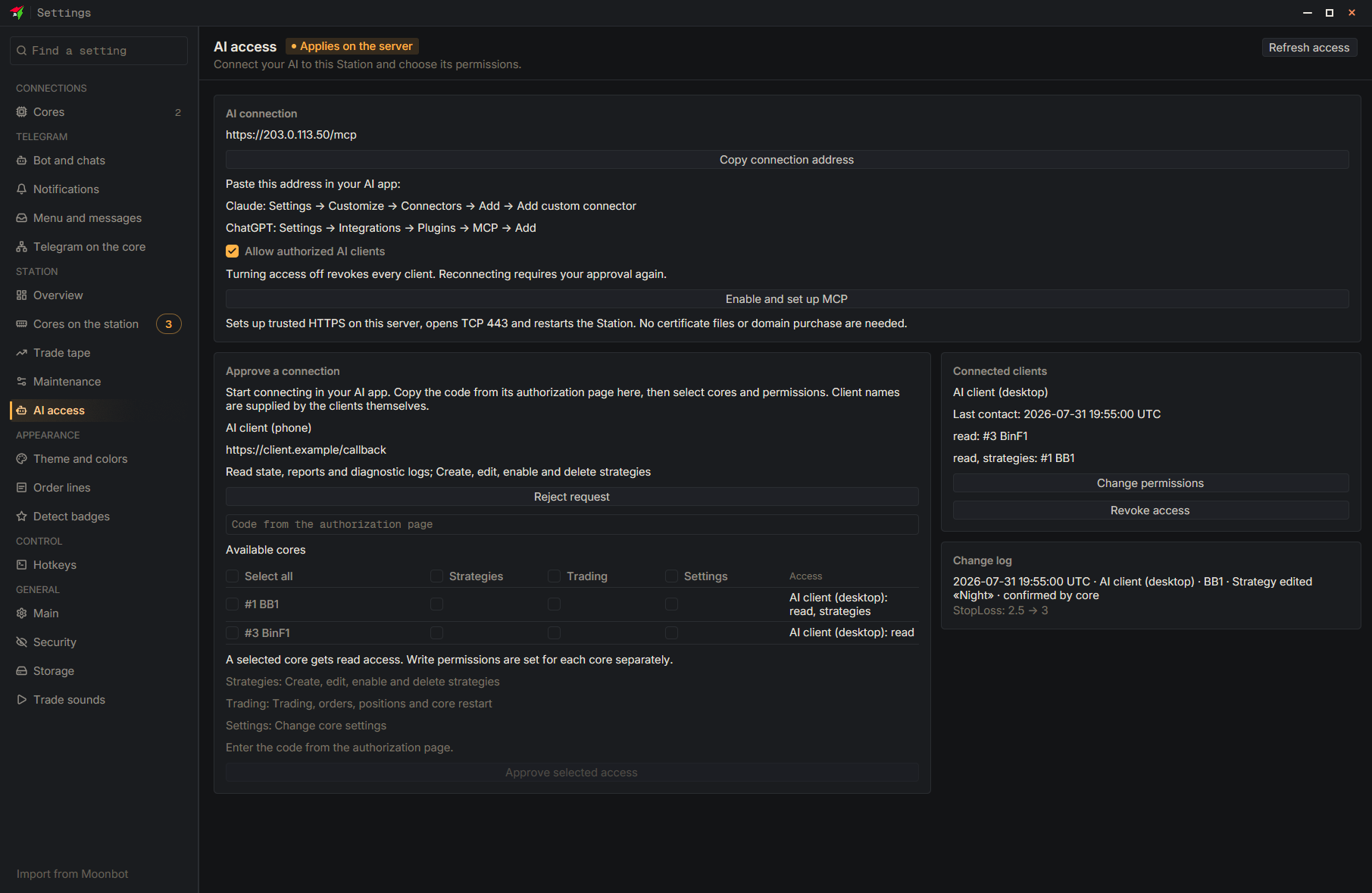
In “Settings”, open the “AI access” section and click “Enable and set up MCP”, then “Copy connection address”. In your AI app, add this address as a custom connector: in Claude it is Settings → Customize → Connectors → Add → Add custom connector; in the desktop ChatGPT app it is Settings → Integrations → Plugins → MCP tab → Add. The app opens an authorization page: copy the code from it into the “Code from the authorization page” field, tick the cores and click “Allow selected access”. A ticked core gets read access, while “Strategies”, “Trading” and “Settings” are enabled separately for each core. Later, permissions are changed with “Change permissions”, or removed with “Revoke access”; turning off MCP revokes all access. The Station is required: the AI connects to it, not to the terminal.
- Settings
- AI access — Section of the Station
- Enable and set up MCP
- Copy connection address — Paste it into your AI app as a custom connector
- Type: Code from the authorization page — The AI app shows the code when you connect
- Core — Strategies, Trading and Settings are separate checkboxes for each core
- Approve selected access